

 share
 tweet
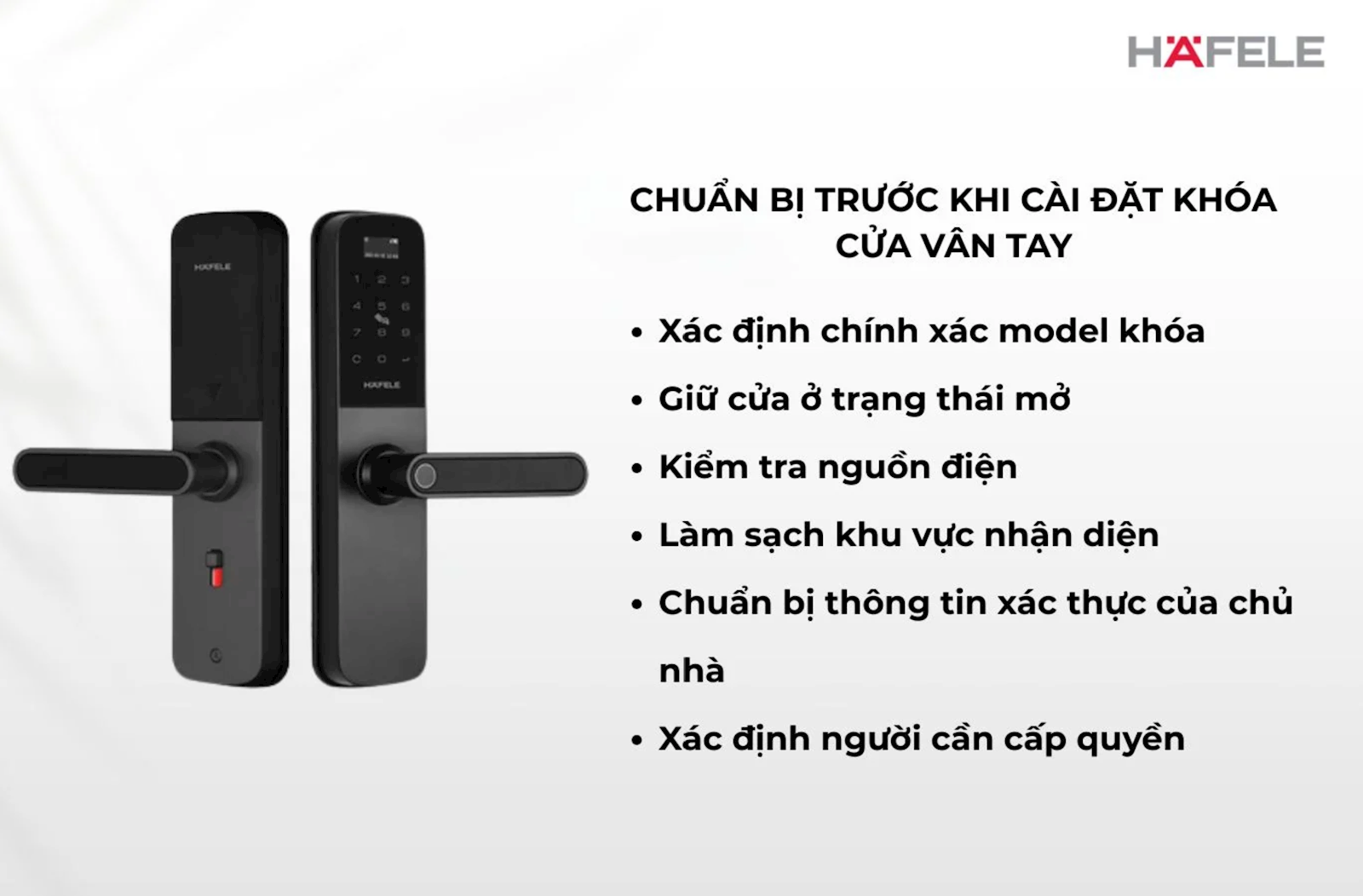
Preparation Before Installing a Fingerprint Door Lock
Thorough preparation helps ensure a smooth and accurate installation process while minimizing potential interruptions. Before proceeding, check and complete the following preparations:
- Identify the exact lock model: Check the product code on the device label, packaging, or accompanying warranty card to ensure you follow the correct manufacturer''s instructions.
- Keep the door open: Do not close the door while adding, deleting, or checking user data. Keeping the door open allows you to handle any issues if the lock has not successfully registered the new information.
- Check the power supply: Ensure that the touchscreen, fingerprint sensor, and voice prompts are working properly. If the device indicates a low battery, replace the batteries before starting.
- Clean the recognition areas: Use a soft, dry cloth to clean the fingerprint sensor and card reader area. This prevents dust or moisture from affecting the registration process.
- Prepare the administrator''s authentication information: During the initial setup, use the default administrator password 123456 to register the administrator. For subsequent operations, such as adding or deleting users, the lock will require verification using the registered administrator''s credentials.
- Identify users who need access: Clearly distinguish between users who are authorized to manage the lock and those who only need permission to unlock the door.
How to Set Up a Fingerprint Door Lock
The setup process varies depending on the user''s role. For a new door lock, the first step is to register the administrator''s information. Once the administrator account has been set up, you can register additional fingerprints, access cards, or passwords for other users.
Setting Up the Administrator (Main User)
Before performing any other settings, you must register an administrator for the lock. During the initial setup, the default administrator password for accessing the settings mode is 123456.
Follow these steps:
- Step 1: Touch the screen to activate the lock.
- Step 2: Press the [*] key twice to enter settings mode.
- Step 3: Enter the default administrator password 123456, then press [#].
- Step 4: Press [1], then press [1] again to select the Add Administrator function.
- Step 5: Select the authentication method for administrator registration:
- Press [1] to add a password.
- Press [2] to add a fingerprint.
- Press [3] to add an access card.
Setting Up Unlocking Permissions for Regular Users
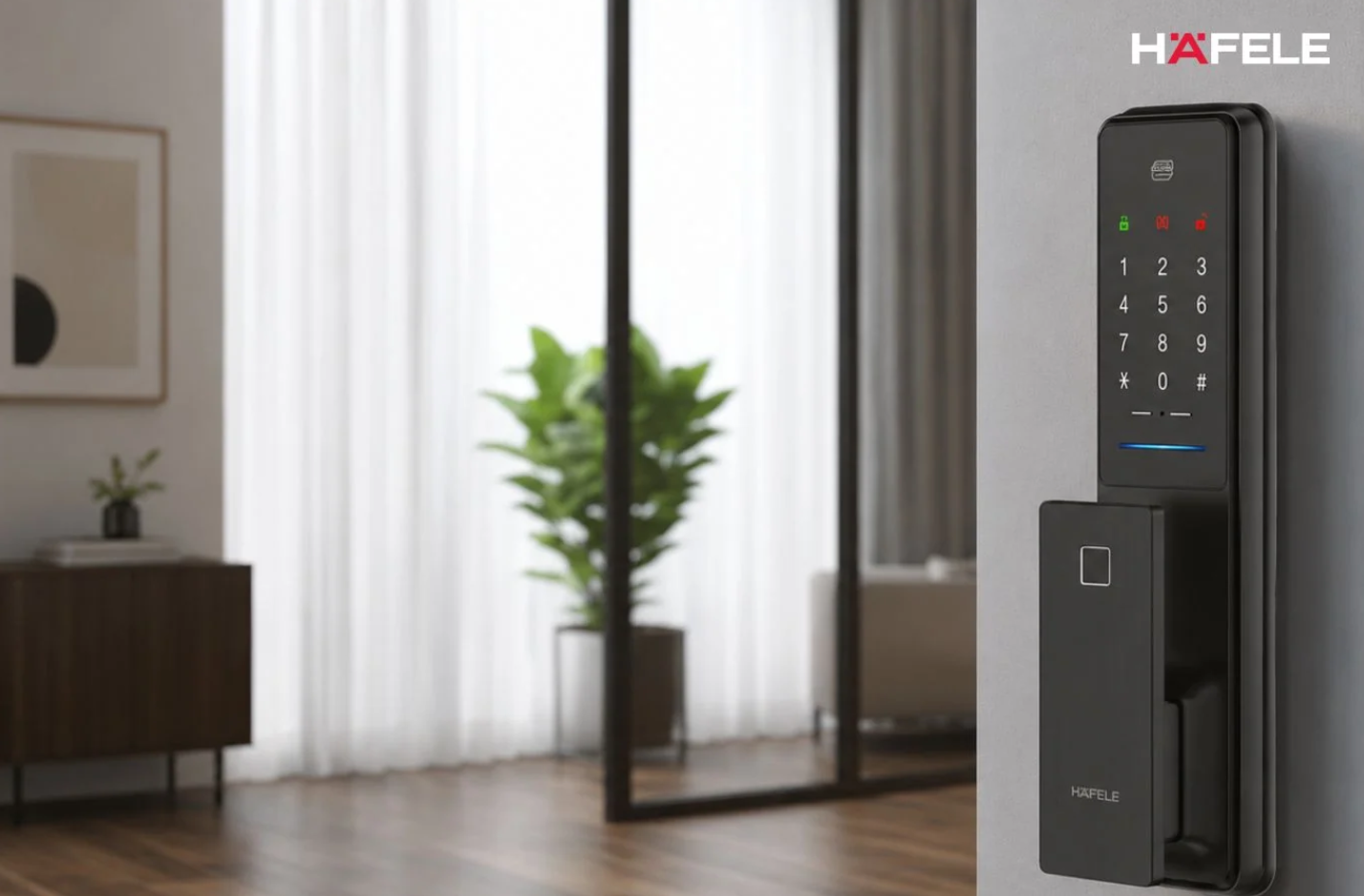
Depending on the lock model, regular users can be granted access through a password, fingerprint, access card, or other biometric authentication methods. You must register the administrator first, then follow the corresponding setup procedure for each lock model below.
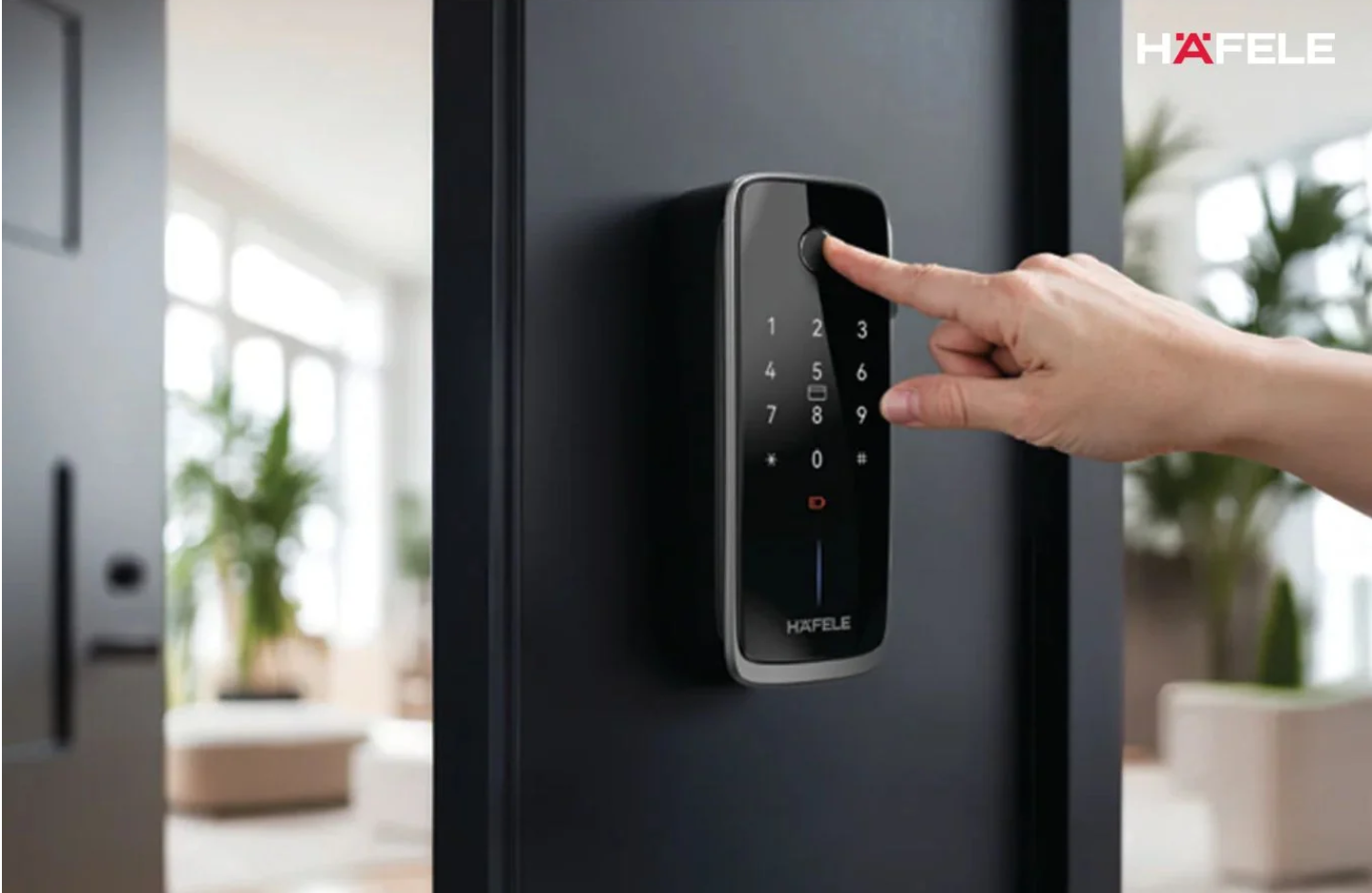
Adding Regular Users on the Häfele NOVA Lock
The Häfele NOVA lock supports three unlocking methods for regular users: password, fingerprint, and access card.
Follow these steps:
- Step 1: Touch the screen to activate the lock.
- Step 2: Press the [*] key twice to enter settings mode.
- Step 3: Verify the administrator''s credentials.
- Step 4: Press [1] to select the Add User function.
- Step 5: Press [2] to add a regular user.
- Step 6: Select the authentication method to register:
- Press [1] to add a password.
- Press [2] to add a fingerprint.
- Press [3] to add an access card.
Adding Regular Users on the Häfele Horizon Lock
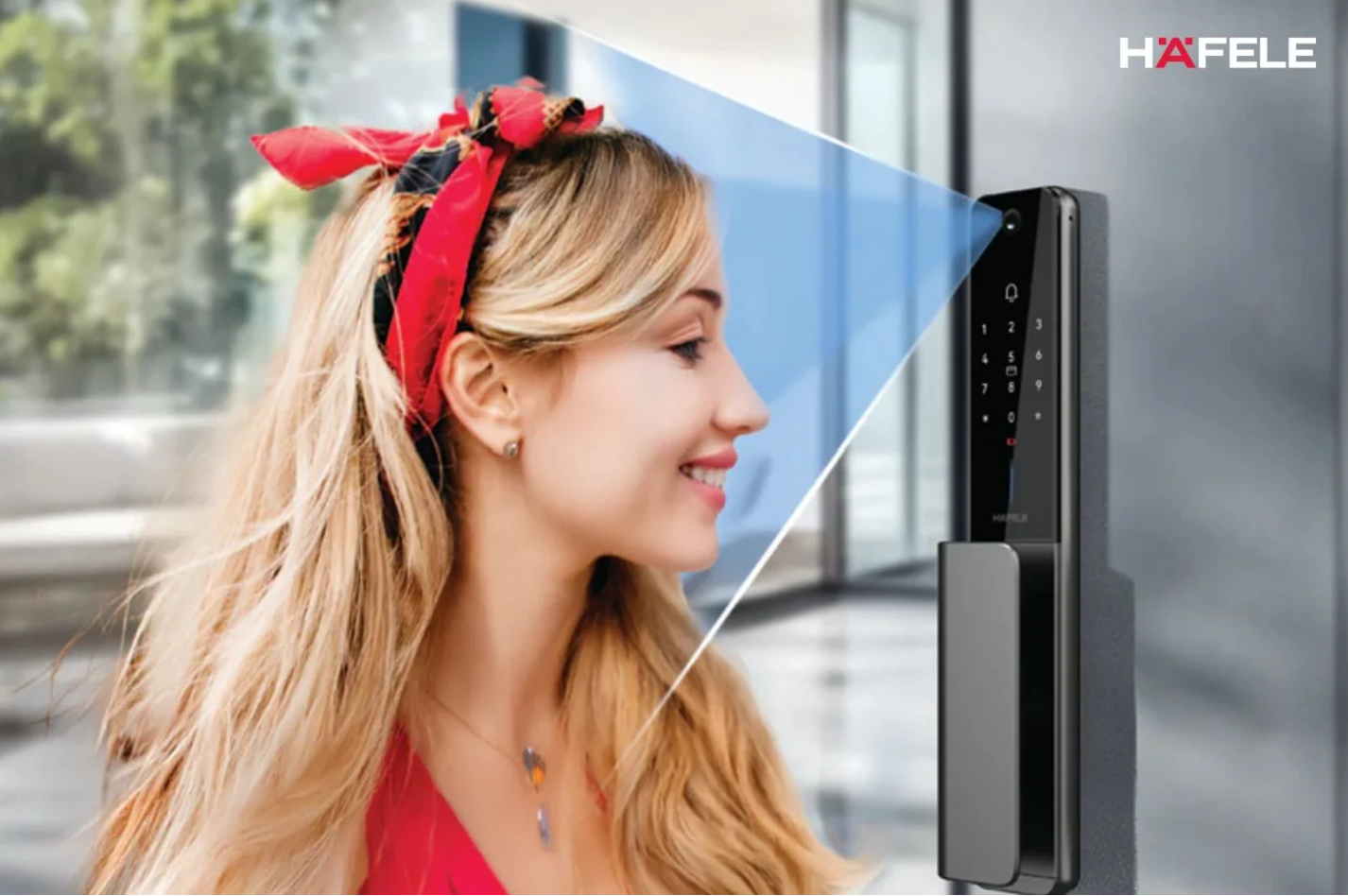
In addition to passwords, fingerprints, and access cards, the Häfele Horizon lock also supports Face ID for facial recognition when unlocking the door.
Follow these steps:
- Step 1: Touch the screen to activate the lock.
- Step 2: Press the [*] key twice to enter settings mode.
- Step 3: Verify the administrator''s credentials.
- Step 4: Press [1] to select the Add User function.
- Step 5: Press [1] again to proceed to user registration.
- Step 6: Select the authentication method to add:
- Press [1] to add a password.
- Press [2] to add a fingerprint.
- Press [3] to add an access card.
- Press [4] to add Face ID.
Adding Regular Users on the Häfele INFINITY Lock
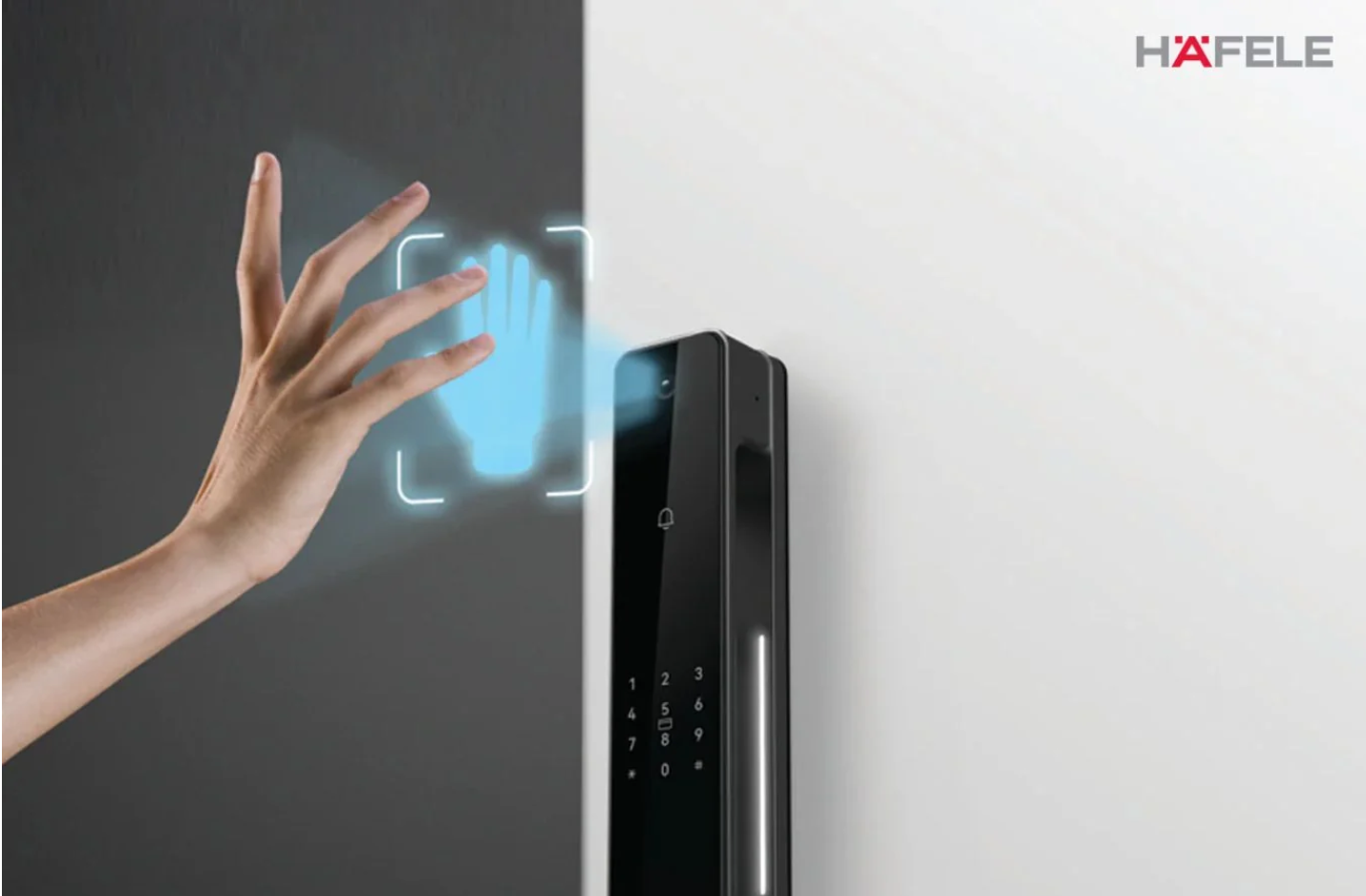
With the Häfele INFINITY series, users can register Palm ID for palm recognition, in addition to passwords, fingerprints, access cards, and Face ID.
Follow these steps:
- Step 1: Touch the screen to activate the lock.
- Step 2: Press the [*] key twice to enter settings mode.
- Step 3: Verify the administrator''s credentials.
- Step 4: Press [1] to access the Add User function.
- Step 5: Press [2] to add a regular user.
- Step 6: Select the authentication method:
- Press [1] to add a password.
- Press [2] to add a fingerprint.
- Press [3] to add an access card.
- Press [4] to add Face ID.
- Press [5] to add Palm ID.
Notes for Face ID Registration:
Stand approximately 0.3–1 meter away from the camera, facing it directly. Follow the lock''s voice instructions by turning your face to the left, turning to the right, looking down, and then looking up. If registration is unsuccessful, repeat the same steps.
Notes for Palm ID Registration:
Raise your hand and position your palm facing the recognition sensor at a distance of approximately 20–30 cm. If the lock does not successfully recognize your palm, repeat the process according to the instructions.
How to Verify Newly Registered User Information
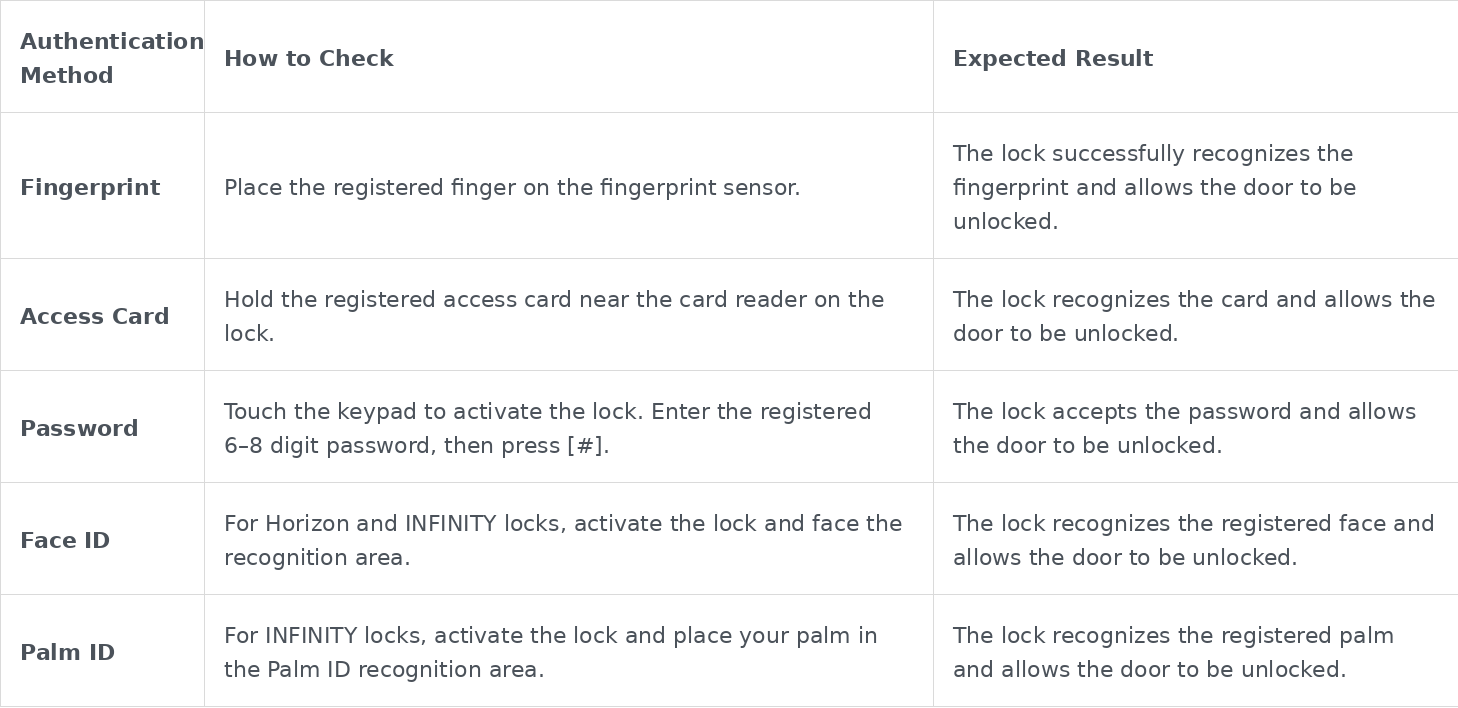
After registration, use the newly registered authentication method to test the lock.
A green light indicates successful authentication.
A red light indicates unsuccessful authentication.
How to Delete Administrator and Other User Information from a Fingerprint Door Lock
When you need to revoke access permissions for regular users, the administrator can perform the operation directly on the lock by following these steps:
- Step 1: Touch the screen to activate the lock.
- Step 2: Press the [*] key twice to enter settings mode.
- Step 3: Verify the administrator''s credentials.
- Step 4: Press [2] to access the User Management/Delete User function.
- Step 5: Press [1] to select Delete Regular Users.
- Step 6: Press [#] to confirm deletion or press [*] to cancel the operation.
Notes:
- This operation will simultaneously delete all regular users registered directly on the lock or through the mobile application.
- If you only want to delete a specific user, you must perform this operation through the lock management application.
- The administrator account will not be deleted using this operation. To delete the administrator, you must restore the lock to its factory settings.
Common Issues When Setting Up a Fingerprint Door Lock
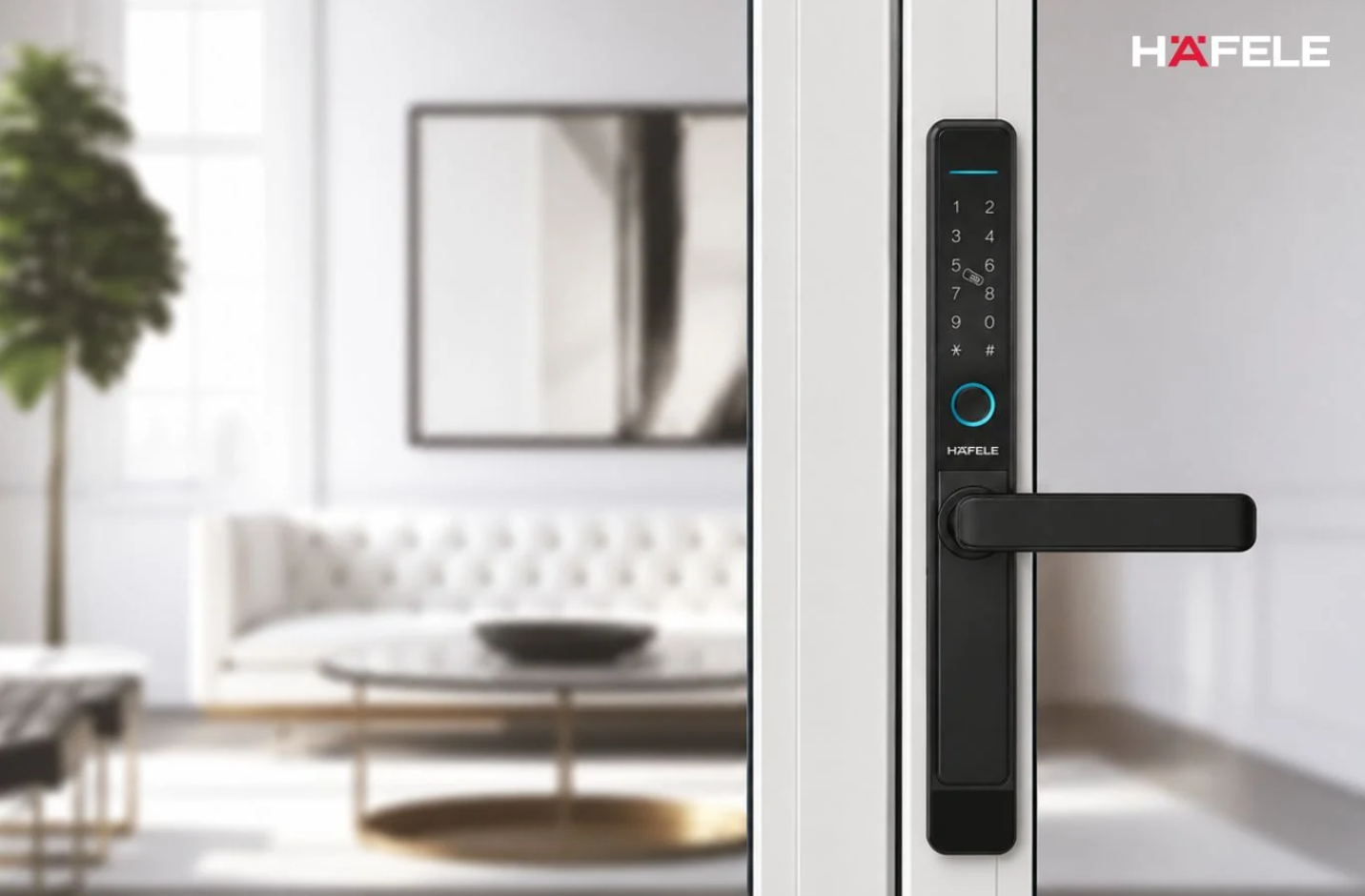
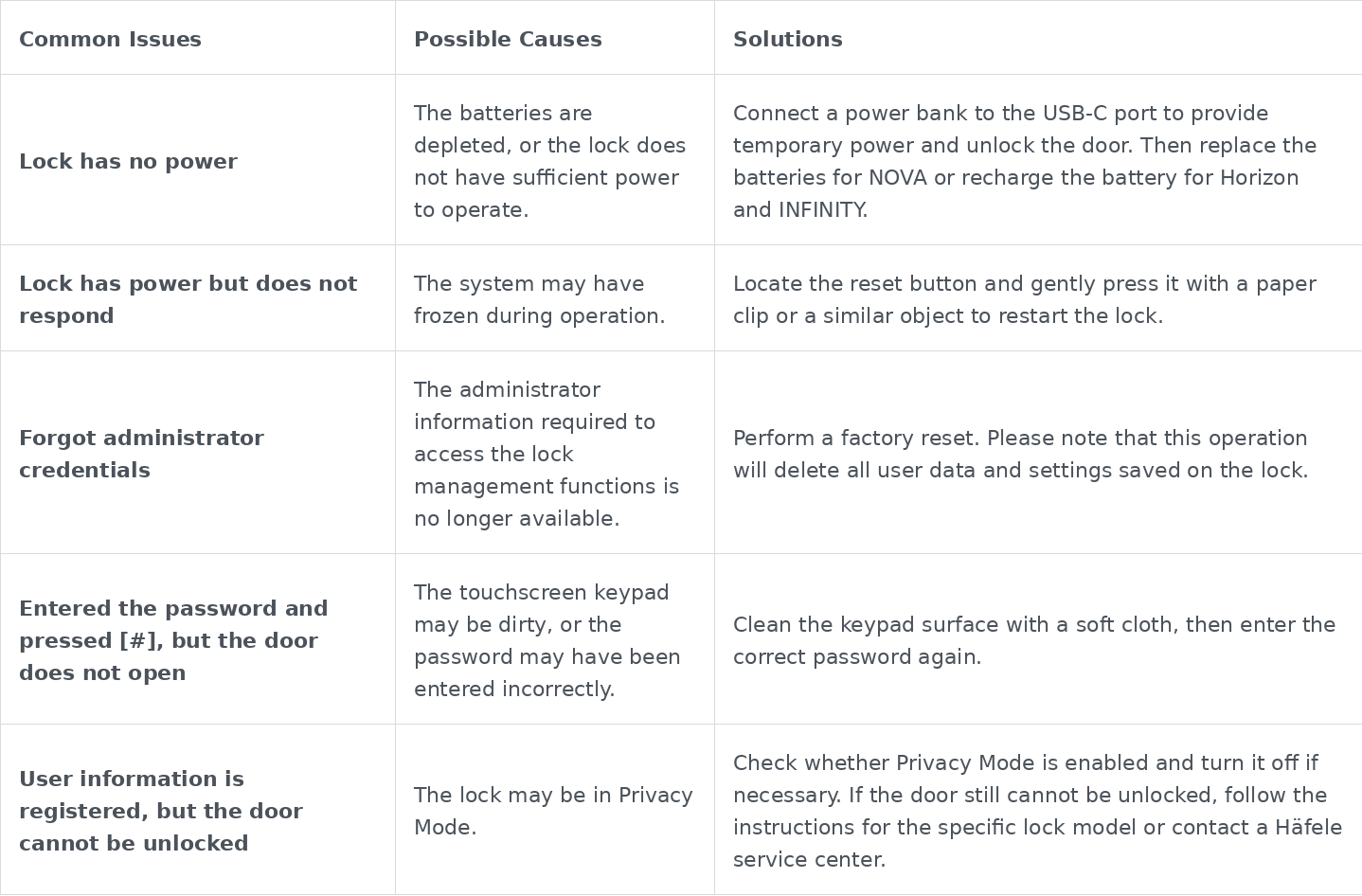
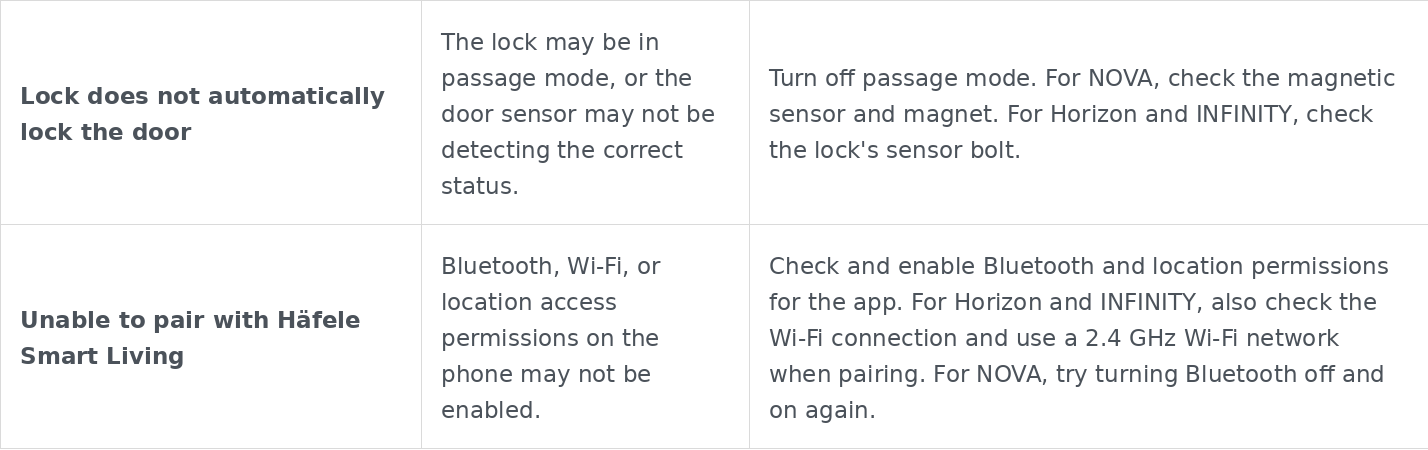
During installation and use, the lock may fail to unlock the door, lose power, or fail to connect to the mobile application. You can check the following common issues before contacting the technical support team.
Following the correct fingerprint door lock setup procedure helps users manage access permissions more effectively, check user information conveniently, and minimize potential errors during operation. If you need help selecting a suitable model or require support based on a specific product code, explore Häfele''s range of electronic door locks and consultation services.
-----
#HafeleVietnam#MaximisingthevalueofspaceTogether#TinhxaochuanDuc#Tinhtekhonggian
----
• Website: https://hafelehome.com.vn/
• Hệ thống showroom Häfele: https://bit.ly/4dUdzdB
• Hệ thống đại lý Häfele: https://bit.ly/3ABLxFy
• Hotline (miễn cước phí): 18001797.

 Hotline:


 Android
 iOS